IBackup - online backup and online storage  

home Support

Signup Pricing plans Products Downloads Security Support Partners FAQ


Restore MS Exchange Server data


The IBackup for Windows 'MS Exchange Server Restore Wizard' guides you with a simple step-by-step approach to restore your MS Exchange Server database files from your IBackup account / local computer to your MS Exchange server.

Note: To perform MS Exchange Server restores, download the 'Advanced Backup Plug-in' after installing 'IBackup for Windows' application.

It is advisable that a qualified database administrator carries out the data restore.


Listed below are the steps to be executed before you initiate the MS Exchange Server 2000 and 2003 restore operation:

Step 1

Start the MS Exchange System Manager from
Start > Programs > Microsoft Exchange > System Manager.


Step 2

Right click the 'Public Folder' store / 'Mailbox' store that needs to be restored and choose the 'Dismount Store' option.

Exchange Server Restore


Resources
Download
Advanced Backup Plug-in


Exchange Server Backup

Steps to Backup MS Exchange Server using IBackup for Windows

Related Links

User manual
Product data sheet
Business solutions
 

Step 3

Right-click the 'Public Folder' store/ 'Mailbox' store and choose the 'Properties' option.

Step 4

Click the 'Database' tab from 'Properties', enable the option 'This database can be overwritten by a restore', click 'Apply' followed by 'OK' to confirm the operation.

Perform the steps 3 and 4 listed above for all the databases that need to be restored.

Note: Once the above-mentioned steps have been executed, close the 'MS Exchange System Manager' before initiating the restore operation.

The restore operation will overwrite the existing databases on the MS Exchange Server.

Before initiating the restore operation, take an offline backup of the MS Exchange Server databases that need to be restored.


Listed below are the steps to be executed before initiating the MS Exchange Server 2007 retrieval operations:

Step 1

Start the MS Exchange Management Console from
Start > Programs > Microsoft Exchange Server 2007 > Exchange Management Console.

Step 2

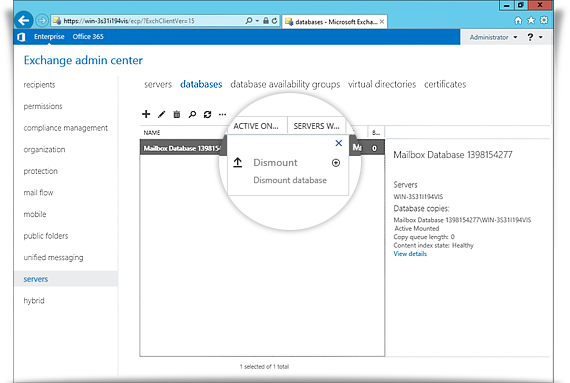
Right-click the 'Public Folder'/ 'Mailbox' database that needs to be restore and choose the 'Dismount Database' option.

Exchange Server Restore

Step 3

Right-click the 'Public Folder'/ 'Mailbox' database and choose the 'Properties' option.

Step 4

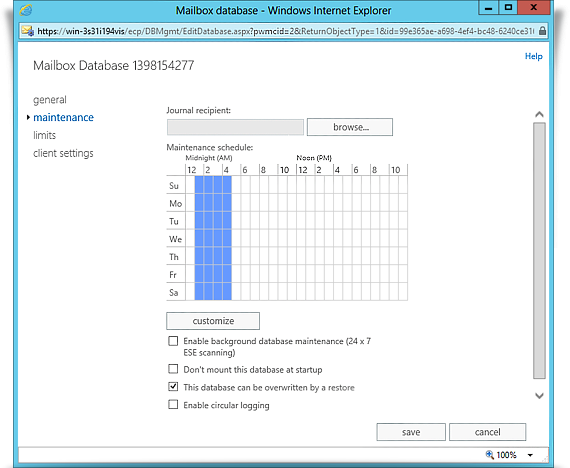
Select the 'General' tab from 'Properties' and then enable the option 'This database can be overwritten by a restore'. Next, click 'Apply' followed by the 'OK' button to confirm the operation.


Perform the steps 3 and 4 listed above for all the databases that need to be restored.

Note:
Once the above-mentioned steps are executed, close the 'Exchange Management Console' before initiating the restore operation.

The restore operation overwrites the existing databases on the MS Exchange Server.

Before initiating the restore operation, do take an offline backup of MS Exchange Server databases that need to be restored.


Restoring the MS Exchange Server database using IBackup for Windows

Once the databases have been dismounted, login to the IBackup for Windows application. From the main application menu, go to Backup-Restore > Exchange Server > Exchange Server Restore. IBackup for Windows provides two options to restore the 'Public Folder' store and the 'Mailbox' stores (Storage Groups/Databases) to your MS Exchange Server.

Option 1:
Restore the MS Exchange Server databases backup from your IBackup account to your MS Exchange Server.

Option 2:
Restore the MS Exchange Server databases backup from your local computer to the MS Exchange Server.


Option 1

Step 1

Select the IBackup for Windows Exchange Backup folder 'IBackupExchBackupset' from your IBackup account. To restore even a single 'Public Folder' store or 'Mailbox' store (Storage Groups/ Databases), the complete Exchange Backup folder 'IBackupExchBackupset' must be restored from the IBackup account.

Exchange Server Restore

Step 2

Select a folder under 'My Computer' as the destination to restore the Exchange Backup folder 'IBackupExchBackupset'. and click the 'Next' button.

Exchange Server Restore

Step 3


On restoring the Exchange Backup folder 'IBackupExchBackupset' to your local computer, the 'Exchange Server Restore' screen is displayed.

Click the 'Browse' button to select the temporary location to hold the MS Exchange Server related files, meant to run the 'Hard Recovery'.

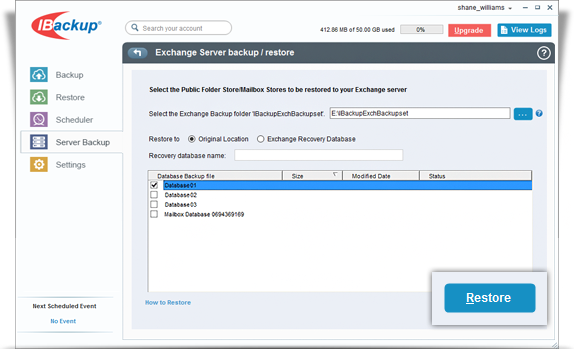
Next, select the required databases and click the 'Restore' button to initiate the MS Exchange Server restore operation. The restore procedure from the local computer to the 'MS Exchange Server may take time (depending on file size).

Do not interrupt the operation during the process.

Exchange Server Restore

On completion of MS Exchange Server restore, the restored databases (the 'Public Folder' store/'Mailbox' stores) are automatically mounted.
   
 
Option 2

Restore the MS Exchange Server databases backup from your 'Local Computer' to the MS Exchange Server.

From the main application menu, go to:
Backup-Restore> Exchange Server > Exchange Server Restore.

Step 1


Select the option 'Restore Exchange Server database backup from your local computer to your MS Exchange Server'. Click the 'Next ' button to access the 'Exchange Server Restore' screen.

Step 2


Click the 'Browse' button to select the IBackup for Windows Exchange Backup folder 'IBackupExchBackupset' from your local computer (the location where the Exchange Server backup folder 'IBackupExchBackupset' was restored earlier from your IBackup account).
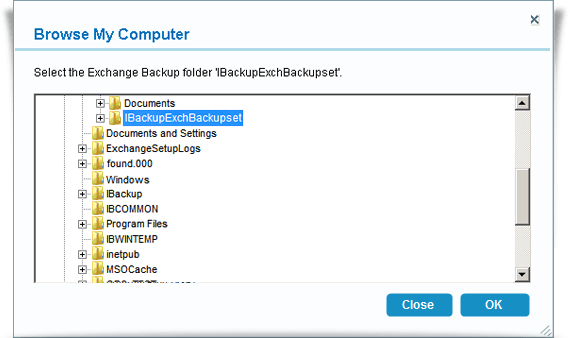
Select the temporary location by clicking the 'Browse' button. The MS Exchange Server related files are stored in the temporary location, which are used to run the 'Hard Recovery' during the restore operation.

Next, select the required databases and click the 'Restore' button to initiate the MS Exchange Server restore operation. It (the restore procedure from the 'Local Computer' to the 'MS Exchange Server') will take some time (depending upon your restore file size).

Do not interrupt the operation during the process.

On completion of MS Exchange Server restore, the restored databases (the 'Public Folder' store/ 'Mailbox' stores) are automatically mounted.